
Most small restaurants already have the hard part: a menu people like. Turning it into table ordering usually means a tablet subscription and an afternoon of retyping. With the AI Category Builder in the AB2BC wallet, the retyping is the part you skip.
1. Photograph the menu (10 minutes)
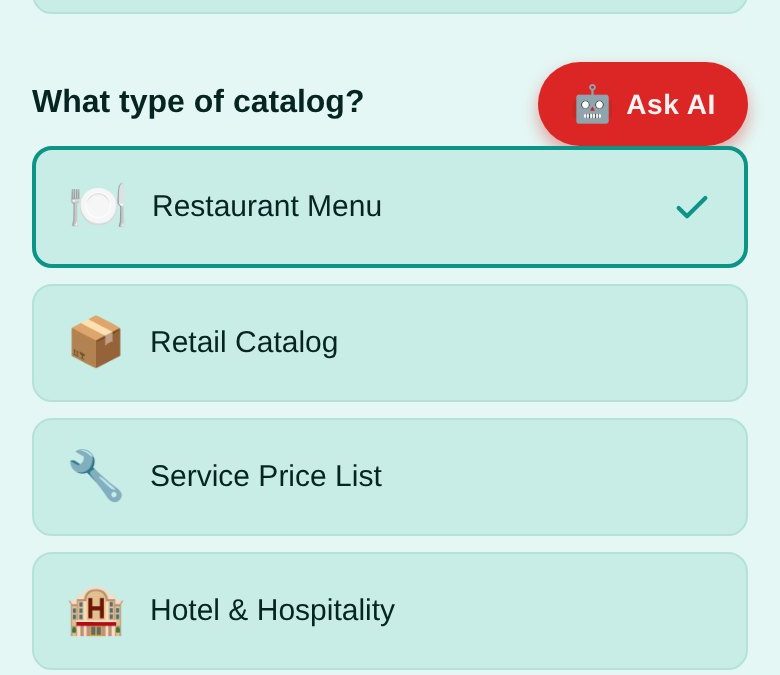
Lay each page flat, in good light. In the Ace wallet open Portals → AI Category Builder, name the catalog, choose Restaurant Menu, and add one photo per page.
2. Let the AI read it, then check everything (30 minutes)
Tap Process with AI. It extracts items, prices and categories. In Review Your Menu, check every price — the AI is good, not perfect — fix names, and move items between categories. Dietary tags such as vegetarian, vegan, halal or gluten-free become filters your guests can use.
3. Choose the reward and the tables (5 minutes)
Set the reward % you offer on qualifying orders, switch on Table QR Codes and enter how many tables you have. Tap Publish Menu.
4. Print and place the codes
Open View Table QR Codes → Print All QR Codes. Each code knows its table number, so orders arrive on your point of sale already labelled — dine in, to go, pickup or delivery.
What your guests see
They scan, browse the menu in their own language, add dishes and tap Pay Now — in USDC, from their AB2BC wallet. No card terminal, no waiting for the bill.
The full how-to, with screenshots, is on the AB2BC Restaurants page.
Good to know: AB2BC runs on test networks today, so payments and rewards are for trying things out. Rewards are not investments, not income and not refunds; their value can go down as well as up.